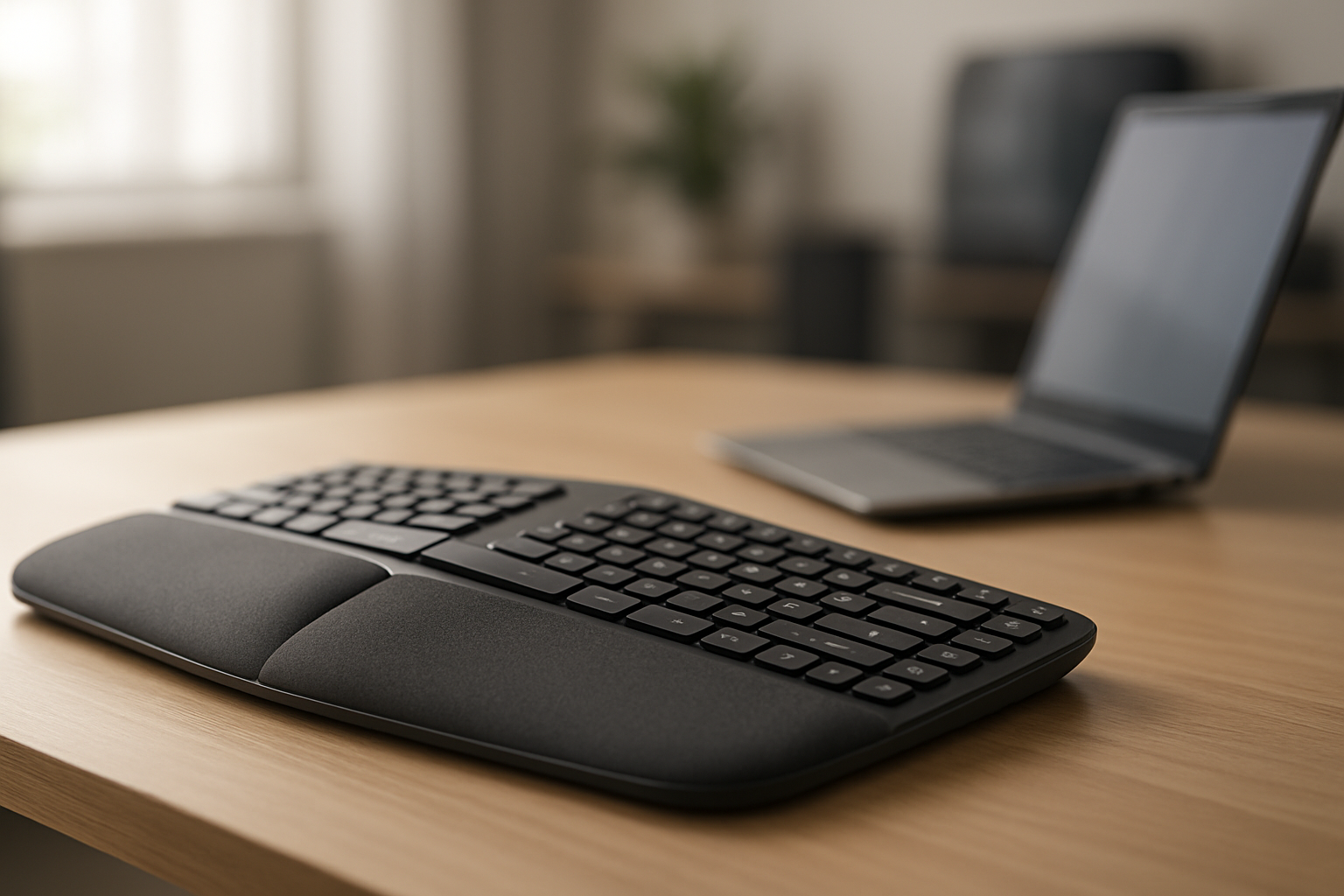
Best Ergonomic Keyboard Under $80 in 2026

Photo by Christian Wiediger on Unsplash
Best Ergonomic Keyboard Under $80 in 2026
Wrist pain doesn’t require a premium keyboard. A well-designed ergonomic keyboard can deliver the same wrist-relief principles as models costing twice as much—the key is understanding which features actually reduce strain versus which are marketing window dressing. This guide walks you through the budget-tier ergonomic options that real owners report making a measurable difference in daily typing comfort.
What Makes an Ergonomic Keyboard Actually Work
Before comparing specific models, it’s worth understanding the mechanics. Ergonomic keyboards reduce wrist strain through three primary design features:
Split design. A keyboard split down the middle allows each hand to rest at its natural angle rather than forcing both toward the center. Anecdotal reports from ergonomic keyboard communities suggest users with existing wrist pain report the most noticeable relief from split layouts.
Negative tilt or tenting. Most office keyboards slope upward toward the typist—the opposite of what your wrist prefers. Ergonomic boards either sit flat or angle slightly downward (negative tilt), or offer adjustable “tenting” to raise the outer edges. This keeps your wrist in a neutral, straight-ahead position.
Contoured or cushioned palm rest. A built-in rest prevents your wrist from dangling below keyboard height, which is where repetitive strain accumulates. Budget models often include fixed rests; mid-range options offer removable or adjustable ones.
Key travel and switch type. Membrane switches (soft, rubber-dome) require less finger force than mechanical switches, reducing fatigue during long typing sessions. This matters more for people with existing pain.
The category includes curved boards (single piece, ergonomic contour), split boards (two halves), and hybrid designs. Each solves the wrist-angle problem differently.
Curved Ergonomic Keyboards (Single Piece)
Curved keyboards keep a traditional single-unit form factor while bending the key layout inward. They’re easier to move between desks and take up less space than splits.
Microsoft Sculpt Ergonomic Keyboard sits at the lower end of mid-tier pricing. According to multiple owner reports on Amazon, the sculpted palm rest and negative tilt noticeably reduce wrist strain for people with mild carpal tunnel symptoms. The membrane switches are quiet, making it suitable for shared office spaces. The main trade-off: the layout is proprietary (keys aren’t standard), so replacement keycaps are harder to source if you wear through the originals.
Logitech Ergo K860 pairs a curved split design with a palm rest cushion. Owner reviews consistently mention the “quiet typing” and “natural hand angle”—the board’s middle section slopes downward, encouraging neutral wrist position without requiring adjustment. Wireless connectivity via USB dongle adds flexibility for hot-desk setups.
Perixx Periboard-512 is a compact curved option for small desks or portable use. It lacks the split feature but includes tenting feet and a gentle inward curve. Based on aggregated owner reviews, people appreciate the smaller footprint without sacrificing ergonomic benefit—useful if you’re squeezing a keyboard onto a cramped desk.
Split Ergonomic Keyboards
Split boards divide into two halves, allowing each hand to sit at its own angle. This is the most aggressive wrist-relief design and tends to deliver the strongest relief for people with existing pain.
Kinesis Freestyle2 for PC is the workhorse split keyboard in the range. Per the manufacturer spec sheet, it offers adjustable tenting (raising the outer edges) and comes with a tether to keep the halves aligned or a separation kit for wider spacing. Owner reports on ergonomic keyboard forums indicate 3-6 weeks of adjustment time before the split layout feels natural, but most report meaningful wrist relief afterward. The membrane switches are reliable and quiet.
Microsoft Sculpt Ergonomic Keyboard (mentioned above) also includes a slight split in the middle, bridging the gap between curved and fully split designs. It’s less aggressive than a true split but easier to transition to if you’re coming from a standard keyboard.
Mechanical vs. Membrane for Budget Ergonomic Boards
The switch type—mechanical or membrane—affects both typing feel and wrist load.
Membrane switches (rubber dome) are softer and require less downward force per keystroke, per manufacturer actuation force specs. For people with wrist pain or fatigue, this matters. Microsoft Sculpt, Logitech Ergo K860, and Kinesis Freestyle2 all use membrane switches. According to owner feedback, the reduced actuation force translates to less finger and wrist fatigue during 8-hour workdays.
Mechanical switches offer tactile feedback and typically require more force. However, budget mechanical ergonomic boards like the Keychron K8 Pro Wireless pair mechanical switches with an ergonomic layout and split option, giving you the satisfying keystroke feel without sacrificing wrist angle. The trade-off is slightly higher finger fatigue on long typing days, though most owners report the ergonomic layout compensates.
Wireless vs. Wired Under $80
Wireless connectivity adds flexibility but costs battery life and occasional latency. At the price point, most ergonomic boards are wired; wireless options exist but are less common.
Logitech Ergo K860 and Keychron K8 Pro Wireless both offer wireless via 2.4 GHz USB dongle or Bluetooth. Per manufacturer spec, latency is imperceptible for typing (under 5ms). Battery life on rechargeable boards typically spans 2-3 weeks per charge.
Wired boards (Kinesis Freestyle2, Microsoft Sculpt, Perixx Periboard-512) eliminate battery concerns and are generally cheaper. For a home office or permanent desk, wired is fine; for hot-desking or multiple monitors, wireless adds convenience.
Setup and Adjustment Tips
A new ergonomic keyboard requires a brief adjustment period—your wrists and fingers are used to your old board’s angle and feel.
- Start with default tenting. Don’t max out the tenting feet on day one. Most users find 5-15 degrees of tenting sufficient; more can strain the opposite direction.
- Add a wrist rest if needed. Even if your board includes a palm rest, a separate cushioned pad can provide additional support during the transition.
- Expect 2-4 weeks of adjustment. Per long-running threads on r/ErgoMechKeyboards, typing speed and comfort typically return to baseline after 2-4 weeks of daily use.
- Pair with monitor height. Your keyboard angle matters less if your monitor is too low or high. Position the screen at eye level to prevent neck strain from compounding wrist strain.
Budget Ergonomic Keyboards: Membrane vs. Mechanical Showdown
If you’re torn between membrane and mechanical ergonomic boards, consider your daily use:
- Membrane wins for: existing wrist pain, 8+ hour typing days, quiet office environments, fastest pain relief.
- Mechanical wins for: typing satisfaction, durability (mechanical switches last 50+ million keypresses vs. 5-10 million for membrane), customization (hot-swap boards allow switch swaps).
FAQ
What’s the difference between tenting and negative tilt? Tenting raises the outer edges of the keyboard (like a tent), angling your hands outward and upward. Negative tilt slopes the entire board downward toward you, keeping your wrist flat. Some boards offer both adjustments; others offer one or the other. Tenting is more common on split keyboards, while negative tilt is standard on curved boards.
Do ergonomic keyboards work for gaming? Ergonomic keyboards prioritize wrist comfort over speed and are not optimized for competitive gaming. The split layout and softer switches can feel awkward during fast-paced games. However, casual gaming and strategy games work fine. If you game and type equally, a mechanical ergonomic board like the Keychron K8 Pro offers a middle ground.
How long does it take to adjust to a split keyboard? Most users report 2-4 weeks of adjustment before typing speed and comfort return to baseline. The first few days feel awkward; by week two, muscle memory begins to shift. Wrist relief often arrives within the first week, even during the adjustment period.
Should I get a split keyboard or a curved keyboard? If you have existing wrist pain or carpal tunnel, a split keyboard delivers stronger relief. If you’re preventing pain or have mild discomfort, a curved keyboard is easier to transition to and still effective. Split keyboards require more desk space and adjustment time; curved boards are more portable and familiar.
Are wireless ergonomic keyboards worth the extra cost? For a permanent desk setup, no—wired is fine and cheaper. For hot-desking, multiple monitors, or a tidy desk, wireless adds convenience. Most wireless ergonomic boards use 2.4 GHz USB dongles, which are reliable for typing (not gaming).
What if my board includes a palm rest but it’s uncomfortable? Most built-in rests are firm and take time to feel natural. Try using it for a full week before deciding. If it remains uncomfortable, a separate padded wrist rest pad can add cushioning without replacing the board’s rest. Some people prefer no rest at all and instead use a separate pad positioned below the board.
Top Picks by Scenario
Best for split-keyboard converts on a budget: Kinesis Freestyle2 for PC — adjustable tenting, proven wrist relief, and a tether or separation kit to customize your spacing.
Best for typists with existing carpal tunnel: Microsoft Sculpt Ergonomic Keyboard — contoured palm rest, negative tilt, and soft membrane switches reduce median nerve compression and typing load.
Best for office workers who need quiet: 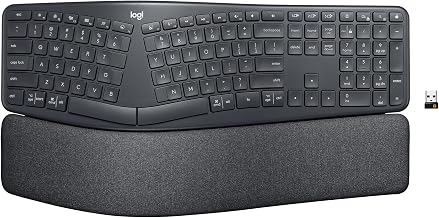
Best for renters or hot-deskers: Perixx Periboard-512 — compact curved ergonomic, portable, and tenting-adjustable without the bulk of a split board.
Best for mechanical-switch enthusiasts: Keychron K8 Pro Wireless — hot-swap mechanical ergonomic layout, wireless, and customizable without breaking the ceiling.
The Bottom Line
Wrist pain and typing fatigue don’t require an expensive keyboard. The ergonomic market includes proven designs—split boards like the Kinesis Freestyle2, contoured boards like the Microsoft Sculpt, and hybrid options like the Logitech Ergo K860—that deliver measurable relief according to owner reports and community feedback.
The best choice depends on your pain level (existing carpal tunnel vs. prevention), desk setup (permanent vs. portable), and switch preference (membrane for immediate relief, mechanical for durability). Start with your wrist angle and palm support; everything else is refinement.